Object-oriented programming abstracts objects based on the engineering problems to be handled and describes the properties, methods, and events of objects with code. MATLAB provides a relatively complete object-oriented programming environment. Moreover, the current version has refactored MATLAB's source code based on the ideas of object-oriented programming, providing an alternative method and approach for calculation and plotting.
Characteristics of Object-Oriented Programming
When using well-designed classes, object-oriented programming can significantly improve code reusability and make programs easier to maintain and extend. Programming with classes and objects has the following main differences from general structured programming:
It can implement function and operator overloading.
It can override methods represented by existing MATLAB functions.
When calling a function with a user-defined object as a parameter, MATLAB first checks to see if there is a method defined for the object's class. If so, it calls it.
It can implement data encapsulation.
Object properties are not visible in the command line; they can only be accessed using class methods.
You can create class inheritance hierarchies. Subclasses can inherit from one parent class (single inheritance) and multiple parent classes (multiple inheritance). Using inheritance, you can share parent functions.
You can use composition to create classes where one object contains another. This method is suitable for situations where one object is part of another object.
Due to space limitations, this section mainly introduces the basic methods and processes for creating classes and objects in MATLAB.
Class Definition
A class is a template used to provide a description of all elements common to instances of the class. Class members include properties, methods, and events that define the class.
Classes in MATLAB are defined using code blocks.
1. Generating Class Blocks
When organizing classes in MATLAB, code is organized into blocks, as shown below. Each block starts with a keyword and ends with an end statement:
classdef ... end — Defines all class components.
properties ... end — Declares property names, defines properties, and specifies default values.
methods ... end — Declares method signatures, defines methods, and contains function code.
events ... end — Declares event names and defines them.
enumeration ... end — Declares members and values of enumeration classes.
Properties, methods, events, and enumeration are keywords and are only used within classdef blocks.
2. Class Definition Block
The classdef block in a class file contains the class definition code, starting with the classdef keyword and ending with the end statement.
classdef(ClassAttributes) ClassName < SuperClass
...
end
ClassAttributes defines the characteristics of the class, and SuperClass defines the parent class, i.e., inheritance.
3. Properties Block
The properties block contains the definition code for properties, starting with the properties keyword and ending with the end statement.
classdef ClassName
    properties(PropertyAttributes)
    ...
    end
...
end
For example, the following class defines a property named Prop1.
classdef MyClass
    properties
        Prop1
    end
...
end
You can get the value of a property using dot notation.
A = MyClass;
% Set the value of the Prop1 property.
A.Prop1 = 10.0;
4. Methods Block
The methods block contains functions that define class methods, starting with the methods keyword and ending with the end statement.
classdef ClassName
    properties
        PropertyName
    end
    methods
        function obj = ClassName(arg1, ...)
            obj.PropertyName = arg1;
            ...
        end
        function ordinaryMethod(obj, arg1, ...)
            ...
        end
    end
end
In the code above, the ClassName method is called the constructor method, used to create instances of the class.
Add a constructor to the MyClass class and set property values.
classdef MyClass
    properties
        Prop1
    end
    methods
        function obj = MyClass(Prop1)
            obj.Prop1 = prop1;
        end
    end
end
Create an instance A of the MyClass class:
A = MyClass(date);For general methods defined as below:
classdef MyClass
    methods
        function out = ordinaryMethod(obj, arg1)
            ...
        end
    end
end
You can call general methods using either MATLAB function syntax or dot notation:
obj = MyClass;
r = ordinaryMethod(obj, arg1);or
obj = MyClass;
r = obj.ordinaryMethod(arg1);
5. Events Block
The events block defines class events, starting with the events keyword and ending with the end statement. To define an event, declare an event name in the events block. Use the notify method of the handle class to trigger the event. Only classes that inherit from the handle class can define events.
6. Enumeration Classes
In MATLAB, enumerations are defined using the enumeration block, starting with the enumeration keyword and ending with the end statement.
classdef ClassName < SuperClass
    enumeration
        EnumerationMember
    end
...
end
For example, the following class defines two enumeration members representing logical false and true.
classdef Boolean < logical
    enumeration
        No(0)
        Yes(1)
    end
end
7. Function Overloading and Operator Overloading
A class can implement methods with the same name as existing functions, which is overloading. Overloading is useful when defining special classes similar to existing MATLAB types. For example, you can implement relational operations, plotting operations, and other operations commonly defined by MATLAB functions for class objects.
Overloading a MATLAB function:
Define a function with the same name to be overloaded.
Ensure that the method's parameter list accepts the class object, which MATLAB uses to determine which version to call.
Operator overloading is redefining the functions corresponding to operators in MATLAB. After implementing operator overloading, you can perform operations similar to numeric and logical operations on objects.
To implement operators for class objects in MATLAB, you need to implement related class methods. Each operator has an associated function, e.g., the + operator is associated with plus.m, and the * operator is associated with mtimes.m. You can implement any operator by creating class methods with appropriate names.
In the example in this section, the + and * operator overloading is implemented in the cline class, allowing for easy translation and scaling of line segments.
Class Attributes
Class attributes are shown in Table 3-7. By defining attributes, you can modify the behavior of the class. The values of attributes are defined in the classdef block.
classdef(Attribute1 = value1, Attribute2 = value2, ...) ClassName
...
end
Table 3-7: Class Attributes
| Attribute Name | Class | Description |
|---|---|---|
| Abstract | Logical (default value = false) | If specified as true, the class is abstract and cannot be instantiated. |
| AllowedSubclasses | meta.class object or cell array of meta.class objects | Lists classes that can be parent classes of this class. Specify subclasses as: single meta.class object or cell array of meta.class objects. An empty cell array {} is equivalent to Sealed class. |
| ConstructOnLoad | Logical (default value = false) | If true, MATLAB calls the class constructor when loading objects from a MAT file. Implement the constructor so it can be called without parameters without generating an error message. |
| HandleCompatible | For value classes, Logical (default value = false) | When specified as true, this class can be used as a parent class for handle classes. |
| Hidden | Logical (default value = false) | If true, the class will not appear in the output of superclasses or help functions. |
| InferiorClasses | meta.class object or cell array of meta.class objects | Establishes priority relationships between classes using this attribute. |
| Sealed | Logical (default value = false) | If true, the class cannot be subclassed. |
Class member attributes are specified in classdef, properties, methods, and events definition blocks. The syntax format is as follows:
classdef(attribute-name = expression, ...) ClassName
    properties(attribute-name = expression, ...)
    ...
    end
    methods(attribute-name = expression, ...)
    ...
    end
    events(attribute-name = expression, ...)
    ...
    end
end
Class Files and Directories
In MATLAB, class code is saved as M-files. The name of the class file is the name of the class, with the extension .m. There are two ways to organize directories containing class files:
Path Directory — A directory on the MATLAB path;
Class Directory — A directory under the path directory named with the @ symbol followed by the class name, e.g., @MyClass.
There are two ways to define class files:
Create a self-contained class definition file and place it in a path directory or class directory. The directory organization is shown in Figure 3-6. Place all self-contained class files inside the path directory. The file name must match the class name and have the extension .m.
Use multiple files to define a class, which requires a class directory (a method used in earlier versions of MATLAB) as shown in Figure 3-7. Place all class definition files for a class into a directory starting with @, followed by the class name. This directory must be located in a path directory, and only one class can be defined per class directory.
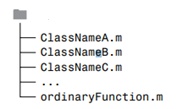
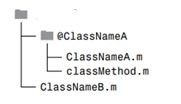
Figure 3-6: Method 1 for Defining Class Files Figure 3-7: Method 2 for Defining Class Files
Class Precedence
When there are multiple class definition files with the same name, the location of the file on the MATLAB path determines the file's precedence. All class definition files determine precedence based on their order on the path, regardless of whether the files are contained in class directories. Example files are shown in Table 3-8.
Table 3-8: Example Files
| Order on Path | Directory and File | File Definition |
|---|---|---|
| 1 | fldr1/Foo.m | Foo class |
| 2 | fldr2/Foo.m | Foo function |
| 3 | fldr3/@Foo/Foo.m | Foo class |
| 4 | fldr4/@Foo/bar.m | bar method |
| 5 | fldr5/Foo.m | Foo class |
Below, we analyze the priority of each version of Foo in Table 3-8.
The class fldr1/Foo.m has higher priority than fldr3/@Foo because fldr1/Foo.m is positioned earlier on the path than fldr3/@Foo.
The class fldr3/@Foo has higher priority than fldr2/Foo.m because fldr3/@Foo is a class in a class directory, while fldr2/Foo.m is not. Classes in class directories have higher priority than functions.
The function fldr2/Foo.m has higher priority than fldr5/Foo.m because fldr2/Foo.m is positioned earlier on the path than fldr5/Foo.m, and fldr5/Foo.m is not in a class directory. Classes not defined in class directories follow the order of functions to determine priority.
The class fldr3/@Foo has higher priority than the class fldr4/@Foo because the method bar will not be considered part of the Foo class in fldr3/@Foo.
If fldr3/@Foo/Foo.m does not contain the classdef keyword, then fldr4/@Foo/bar.m becomes a method of the Foo class in fldr3/@Foo.
Object-Oriented Programming Example
[Example 3-25] By defining a new class named cline, you can implement the definition and plotting of line segments, as well as geometric transformations such as translation and scaling.
1. Data Structure of the cline Class
The cline class defines a line segment using the coordinates of its start and end points. Its object ln is a structure with 4 fields. These four fields are ln.startx, ln.starty, ln.endx, and ln.endy.
properties
    startx
    starty
    endx
    endy
end
2. Methods of the cline Class
The cline class implements the following methods:
Constructor cline
draw method
Overloaded + and * operators
(1) Constructor of the cline Class
Below is the constructor cline for the cline class.
methods
    function ln = cline(varargin)
        % Constructor for cline object
        % ln = cline(startx, starty, endx, endy)
        switch nargin
            case 0
                % If no input parameters, create a default object
                ln.startx = 0;
                ln.starty = 0;
                ln.endx = 0;
                ln.endy = 0;
            case 1
                % If only one parameter, return it
                if(isa(varargin{1}, 'cline'))
                    ln = varargin{1};
                else
                    error('Input parameter is not a cline object.')
                end
            case 4
                % Create object with specified coordinate values
                ln.startx = varargin{1};
                ln.starty = varargin{2};
                ln.endx = varargin{3};
                ln.endy = varargin{4};
            otherwise
                error('Incorrect number of input parameters.')
        end
    end
The cline class has 3 constructors with different forms:
No input parameters — If the constructor is called with no parameters, MATLAB returns a cline object with empty fields.
Input parameter is an object — If the constructor is called with an object as input, MATLAB returns that object.
Input parameters are the coordinate values of the start and end points of the line segment — The class function creates the cline object, which is then returned by the constructor.
Here is an example using the cline class constructor:
ln = cline(0, 0, 10, 20)This will create a line segment with start coordinates (0,0) and end coordinates (10,20).
(2) draw Method of the cline Class
function draw(ln)
    x1 = [ln.startx ln.endx];
    y1 = [ln.starty ln.endy];
    line(x1, y1)
end
(3) Overloading Arithmetic Operators
When performing translation and scaling operations on a line segment, you are actually performing addition, subtraction, or multiplication calculations on the coordinate values of the start and end points of the line segment, and then plotting using the resulting coordinates. In this example, plus and mtimes methods are defined for the cline class to implement operations like addition and multiplication.
Overloading the + Operator
Translating a graphic element is actually translating its control points, then replotting. Translating a point involves adding or subtracting the translation values in the x and y directions to its horizontal and vertical coordinates. If translating right and up is defined as positive, and left and down as negative, then addition and subtraction operations can be unified into an addition operation. The control points of a line segment are its start and end points. To translate a line segment, you only need to calculate the translation of its start and end points.
If lno is a cline class object and v is an array (whose values represent the translation magnitudes in the x and y directions), the expression lno + v calls the plus function. The following function defines the + operator for the cline class.
function ln = plus(lno, v)
    if(isa(lno, 'cline'))
        x1 = lno.startx + v(1);
        y1 = lno.starty + v(2);
        x2 = lno.endx + v(1);
        y2 = lno.endy + v(2);
        ln = cline(x1, y1, x2, y2);
    else
        error('Parameter type error.')
    end
end
This function first checks if the first input parameter is an object of type cline. If so, it adds the translation values in the x and y directions to the coordinate values of the start and end points of the line segment represented by the object. If not, it gives an error message.
Overloading the * Operator
Scaling a line segment up or down is actually multiplying the start and end point coordinates of the line segment by a scaling factor, then plotting using the resulting coordinate values.
If lno is a cline class object and v is an array (whose values represent the scaling ratios in the x and y directions), the expression lno * v calls the mtimes.m function. The following function defines the * operator for the cline class.
function ln = mtimes(lno, v)
    if(isa(lno, 'cline'))
        x1 = lno.startx * v(1);
        y1 = lno.starty * v(2);
        x2 = lno.endx * v(1);
        y2 = lno.endy * v(2);
        ln = cline(x1, y1, x2, y2);
    else
        error('Parameter type error.')
    end
end
Using Overloaded Operators
List all methods of the class using the methods command.
Given ln = cline(1, 0, 8, 5), MATLAB calls the plus function when using the statement ln2 = ln + [3 -1], and calls the mtimes function when using the statement ln3 = ln * [2 2]. Then plot the graphs of these three lines.
ln = cline(1, 0, 8, 5);
ln2 = ln + [3 -1];
ln3 = ln * [2 2];
draw(ln);
hold on
draw(ln2);
draw(ln3);
hold off
This generates the graph shown in Figure 3-8. The top line in the figure is the initially generated line segment, the bottom line is the graph after translating the line segment down by 1 unit and right by 3 units, and the middle line is the graph after scaling by a factor of 2.
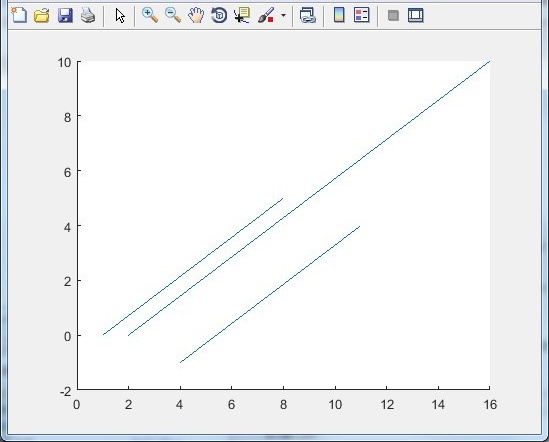
Figure 3-8