If you need to call command lines repeatedly, or if the number of command lines is large, you can write them in the form of M-files and save them.
Script M-Files and Function M-Files
[Example 3-9]
Suppose you want to plot a unit sphere and make the sphere look smooth. You can enter the following three lines of commands in the Command Window. The first line is a sphere command function, indicating drawing a unit sphere; the second line performs interpolation shading on the sphere; the third line sets the coordinate system so that the measurement units in each coordinate direction are the same. If they are different, the sphere will look like an ellipsoid.
sphere
shading interp
axis equal
This generates a sphere as shown in Figure 3-3.
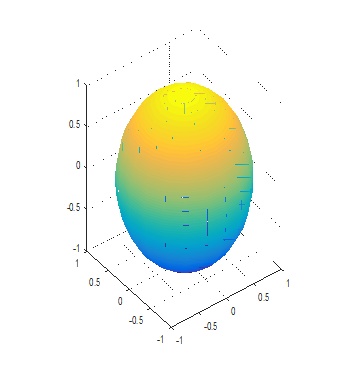
Figure 3-3
[Example 3-10]
Suppose in addition to generating a sphere, you also want to generate a cylinder. You can consider writing a plotting function that has a surface parameter. When calling this function, if the parameter is set to "sphere", a unit sphere is generated; if set to "cylinder", a unit cylinder is generated.
The work of creating and editing programs is done in the M-file Editor. Click the "New Script" button in the main interface toolbar to open a new M-file editing window.
The work of creating and editing programs is done in the M-file Editor. Click the "New Script" button in the main interface toolbar to open a new M-file editing window.
Enter the following code in the M-file Editor:
function drawsur(surface)
switch surface
    case 'sphere'
        sphere
    case 'cylinder'
        cylinder
end
shading interp
axis equal
Then save it to the bin directory under the MATLAB installation directory, naming it drawsur.m. Now, you can call the drawsur function in the Command Window.
Note: If you save the program in another directory, you need to set that directory as the current directory in the Current Directory window.
Enter the following command line in the Command Window:
drawsur('sphere')This generates the same sphere as in Figure 3-3. Enter:
drawsur('cylinder')The generated unit cylinder is shown in Figure 3-4.
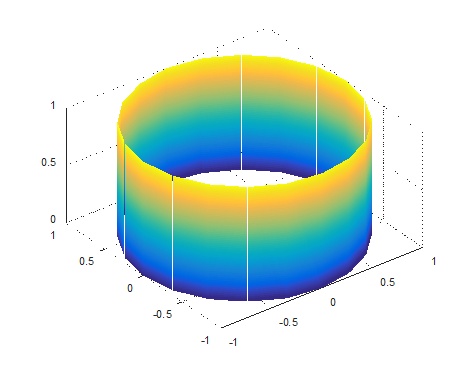
Figure 3-4
There are two types of M-files: one is a script M-file, and the other is a function M-file. The above uses the function form. For comparison, we continue with the previous example. Create a new M-file and enter the following code in the editor:
sphere
shading interp
axis equal
Save it as spher.m. Enter in the Command Window:
spherThis generates a unit sphere.
Clearly, the method used here is completely different from the drawsur file. It does not have the function keyword and has no input parameters. This is the usage of a script M-file, while the drawsur file uses the function M-file method.
Generally, the differences between script M-files and function M-files are shown in Table 3-6.
Generally, the differences between script M-files and function M-files are shown in Table 3-6.
Table 3-6: Differences Between Script M-Files and Function M-Files
| Script M-File | Function M-File |
|---|---|
| Does not accept input parameters, no return values | Can accept input parameters, can have return values |
| Operates based on data in the workspace | By default, the scope of parameters in the file is limited to inside the function |
| Used when automating multi-step operations that take a lot of time | Used when extending MATLAB language functionality |
Basic Structure of M-Files
Below is the relatively standard format for a function M-file, where the bold text represents the basic components of the M-file:
function [x, y] = myfun(a, b, c)        % Function definition line
% H1 line — summarizes the function's functionality in one line
% Help text — explains how to use the function with one or more lines of text
% Available when typing "help <functionname>" in the command line
% Function body — generally starts after the first blank line.
% Comments — describe the function's behavior, input/output types, etc.
% These texts are not displayed when typing "help <functionname>" in the command line.
x = prod(a, b); % Start writing function code
Thus, a complete function M-file should include the function definition line, H1 line, help text, function body, comments, and function code. Among these, the function definition line and function code are essential.
Creating Help Text
Writing some text at the beginning of the program to provide help information on how to use the function is a good programming habit. If formatted correctly, typing the help <functionname> command in the command line will display the help text.
MATLAB treats the first group of consecutive lines starting with the % symbol immediately following the function definition line as the function's help text.
[Example 3-11]
Consider the following small program:
function y = tentimes(x)
% This program calculates the product of the input value and 10
% Used to demonstrate the implementation of function help text in MATLAB
y = x * 10;
Save it to the work directory of MATLAB, naming the M-file tentimes.m. Enter in the Command Window:
help tentimes
Display:
This program calculates the product of the input value and 10
Used to demonstrate the implementation of function help information in MATLAB
Enter:
y = tentimes(10)
Get the return value:
y =
   100
Function Parameters
When calling a function, the caller passes data through a parameter list and gets return values.
1. Checking the Number of Input Parameters
Using the nargin and nargout functions, you can determine the number of input parameters and output parameters of a function. Then, you can use conditional statements to accomplish different tasks based on the number of parameters.
[Example 3-12]
For the function testarg1 below:
function c = testarg1(a, b)
if(nargin == 1)
    c = a .^ 2;
elseif(nargin == 2)
    c = a + b;
end
When given one input parameter, the function calculates the square of the input value; when given two input parameters, it calculates their sum.
[Example 3-13] Here is a more advanced example. This example finds the first set of consecutive characters in a string. When given one input, the function assumes the default delimiter is a space; when given two inputs, the function allows you to specify another delimiter. The function defined below has one to two output parameters:
function [token, remainder] = strtok(string, delimiters)
% Function requiring at least one input parameter
if nargin < 1
    error('Please enter more input parameters.');
end
token = []; remainder = [];
len = length(string);
if len == 0
    return
end
% If there is one input parameter, use space as delimiter
if(nargin == 1)
    delimiters = [9:13 32]; % Space characters
end
i = 1;
% Determine where non-delimiter characters start
while(any(string(i) == delimiters))
    i = i + 1;
    if(i > len), return, end
end
% Find where consecutive characters end
start = i;
while(~any(string(i) == delimiters))
    i = i + 1;
    if(i > len), break, end
end
finish = i - 1;
token = string(start:finish);
% When there are two output parameters, calculate characters after the first delimiter
if(nargout == 2)
    remainder = string(finish+1:end);
end
2. Passing Parameters
Using the varargin and varargout functions, you can pass any number of input parameters or return any number of output parameters to a function.
MATLAB assigns all input parameters to a cell array. Each cell can contain data of any size or type. For output parameters, the function code must pack them into a cell array so that MATLAB can return the parameters to the calling function.
[Example 3-14]
The function in the example accepts any number of two-element vectors and connects them with line segments:
function testvar(varargin)
for k = 1:length(varargin)
    x(k) = varargin{k}(1); % Cell array indexing
    y(k) = varargin{k}(2);
end
xmin = min(0, min(x));
ymin = min(0, min(y));
axis([xmin fix(max(x))+3 ymin fix(max(y))+3])
plot(x, y)
Coded this way, you can have different input lists when using the testvar function, such as:
testvar([2 3], [1 5], [4 8], [6 5], [4 2], [2 3])
testvar([-1 0], [3 -5], [4 2], [1 1])
3. Unpacking Contents of varargin
Since varargin contains all input parameters in a cell array, it is necessary to use cell array indexing to extract data. For example:
y(n) = varargin{n}(2);Here, the indexing expression {n} gets the n-th cell of varargin. The expression (2) represents the second element of the cell's content.
4. Packing varargout
When any number of output parameters are allowed, you must pack all outputs into the varargout cell array. You can use nargout to determine the number of output parameters.
[Example 3-15]
The code for accepting a two-column input array is as follows, where the first column represents a series of x-coordinates and the second column represents y-coordinates. It splits the array into separate [xi, yi] vectors. These vectors can be passed to the testvar function.
function [varargout] = testvar2(arrayin)
for k = 1:nargout
    varargout{k} = arrayin(k, :);   % Cell array assignment
end
The assignment statement in the for loop uses the assignment syntax for cell arrays. The cell array on the left side is indexed with curly braces. When calling the testvar2 function, enter:
a = [1 2; 3 4; 5 6; 7 8; 9 0];
[p1, p2, p3, p4, p5] = testvar2(a)
p1 =
     1     2
p2 =
     3     4
p3 =
     5     6
p4 =
     7     8
p5 =
     9     0
5. varargin and varargout in Parameter Lists
varargin or varargout must appear last in the parameter list, meaning necessary parameters must be specified first when calling the function. The function declaration lines below show the correct positions for varargin and varargout:
function [out1, out2] = example1(a, b, varargin)
function [i, j, varargout] = example2(x1, y1, x2, y2, flag)
6. Returning Output Parameters
Any parameter placed on the left side of the equal sign in the function definition line is the return value of the calling function. If you are passing input parameters that any function can modify, you need to use the same parameter as an output parameter so that the calling function can get the updated value. For example:
[text, offset] = readText(filestart, offset)Function Handles
1. Creating a Function Handle
In MATLAB, you can create a function handle by adding the @ symbol before a function name.
[Example 3-16] Create a function handle for the humps function and assign it to the variable fhandle.
fhandle = @humps;You can pass the handle to another function just like passing any other variable. In this example, the created function handle is passed to the fminbnd function, then minimized on the interval [0.3, 1]:
x = fminbnd(fhandle, 0.3, 1)
x =
    0.6370
The fminbnd function uses the feval function to process the @humps function handle. Below is a small part of the fminbnd M-file. In the first line, the funfcn input parameter receives the passed function handle @humps. The feval function in line 113 processes the handle.
    function [xf, fval, exitflag, output] = ...
         fminbnd(funfcn, ax, bx, options, varargin)
...
113  fx = feval(funfcn, x, varargin{:});
Note: When creating a function handle, use only the function name after the @ symbol; it cannot include any path information. For example, the following syntax is incorrect:
fhandle = @\home\user4\humps.The function name used for the handle can have at most N characters, where N is the number returned by the function namelengthmax. If the function name is longer than this length, MATLAB will truncate the extra part of the name.
N = namelengthmax
N =
    63
2. Using Handles
You can use the feval command in MATLAB to run the target function of a function handle. The syntax format for using a function handle in this command is:
feval(fhandle, arg1, arg2, ..., argn)This is almost the same as directly calling the function represented by the handle. The main difference is that function handles can be processed in the target function of parameter passing.
[Example 3-17] Define a function named plot_fhandle, which receives a function handle and data, then calculates and plots based on the data.
function x = plot_fhandle(fhandle, data)
plot(data, feval(fhandle, data))
When called as follows, it generates the graph shown in Figure 3-5.
plot_fhandle(@sin, -pi:0.01:pi)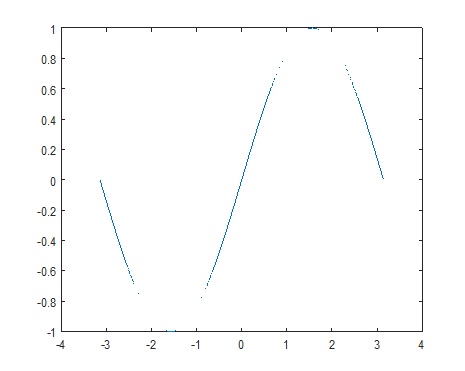
Figure 3-5
3. Function Handle Operations
MATLAB provides two functions that allow conversion between function handles and function name strings. MATLAB also provides some testing functions to see if a variable contains a function handle and to compare function handles.
(1) Convert Function Handle to Function Name
If you need to perform string operations, such as string comparison and display based on function handles, you can use the func2str function to get the function name in string format.
[Example 3-18] The statement line to convert the sin function handle to a string is as follows:
fhandle = @sin;
func2str(fhandle)
ans =
sin
Note: The func2str function does not operate on non-scalar function handles. If you pass a non-scalar function handle to func2str, it will generate an error.
(2) Displaying Function Name in Error Messages
[Example 3-19] The catcherr function below accepts a function handle and a data parameter and attempts to run the function using its handle. If the function fails to run, the catcherr function uses the sprintf function to display an error message, which gives information about the failed function. The function name must be the string that sprintf is to display:
function catcherr(func, data)
try
    ans = feval(func, data);
    disp('The answer is:');
    ans
catch
    sprintf('Error executing function: ''%s''\n', func2str(func))
end
Call the catcherr function below, passing a handle and a legal data parameter to the round function. The second call passes the same function handle and data of an incorrect data type. This time, the round function fails to run, and the catcherr function displays an error message that shows the name of the failed function.
catcherr(@round, 5.432)
ans =
     5
xstruct.value = 5.432;
catcherr(@round, xstruct)
Error executing function: "round"
(3) Convert Function Name to Function Handle
Using the str2func function, you can create a function handle based on a string that contains a MATLAB function name.
[Example 3-20]
To convert the string "sin" to a handle for that function, you can use the following statement:
fh = str2func('sin')
fh =
    @sin
[Example 3-21] If passing a function name string in parameters, the receiving function can convert the function name to a function handle using str2func. Below, first pass a parameter funcname to the function makeHandle, then create a function handle.
function fh = makeHandle(funcname)
fh = str2func(funcname);
makeHandle('sin')
ans =
    @sin
[Example 3-22]
You can also run the str2func function based on a cell array of function name strings. In this case, the str2func function returns an array of function handles.
fh_array = str2func({'sin' 'cos' 'tan'})
fh_array =
    @sin    @cos    @tan
4. Testing Data Types
Using the function_handle marker, you can check if it contains a function handle through the isa function.
[Example 3-23] The function for testing input parameters is shown below. It checks if it is a function handle before calling the function to process it.
function evaluate_handle(arg1, arg2)
if isa(arg1, 'function_handle')
    feval(arg1, arg2);
else
    disp 'Need to pass a function handle.';
end
5. Saving and Loading Function Handles
You can use MATLAB's save and load functions to save function handles in MAT-files and then load them into the MATLAB workspace.
[Example 3-24] Save the function handle array savefile below, then load it into the workspace.
fh_array = {@sin @cos @tan};
save savefile fh_array;
clear
load savefile
whos
Name             Size         Bytes  Class    Attributes
fh_array       1x3             432     cell